
Set up your company workspace
Last updated 2026-10-08
This guide takes you from your invitation to a working company workspace. When you finish, your team signs in to Soomi and your company's email arrives in Soomi.
The order matters for email. Add your people first, then move your mail. When you move your mail, new mail goes straight to everyone's Soomi mailbox. Then each person copies their old mail across, and nothing new lands in the old inbox in the meantime.
1. Create your workspace
Open the link in your invitation email.
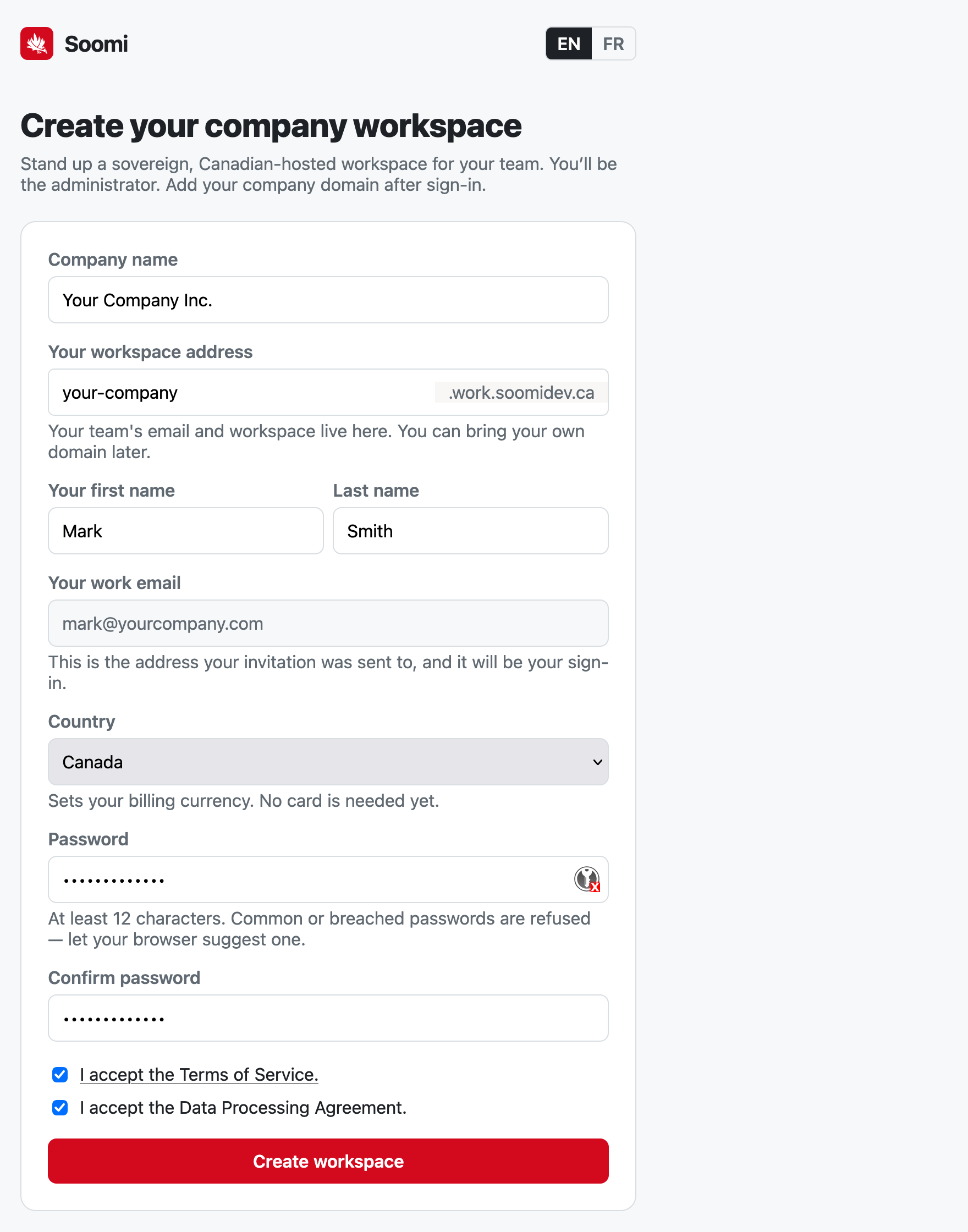
Fill in Create your company workspace:
Company name: your company's name.
Your workspace address: a short name for your workspace web address. Your team's email and workspace live here until you bring your own domain.
Your work email: already filled in. It's the address your invitation was sent to, and it is your sign-in.
Country: sets your billing currency. No card is needed yet.
Password: at least 12 characters. Common or breached passwords are refused, so let your browser suggest one.
Accept the Terms of Service and the Data Processing Agreement, then select Create workspace.
Create your company workspace Sign in with your work email and the password you just chose.
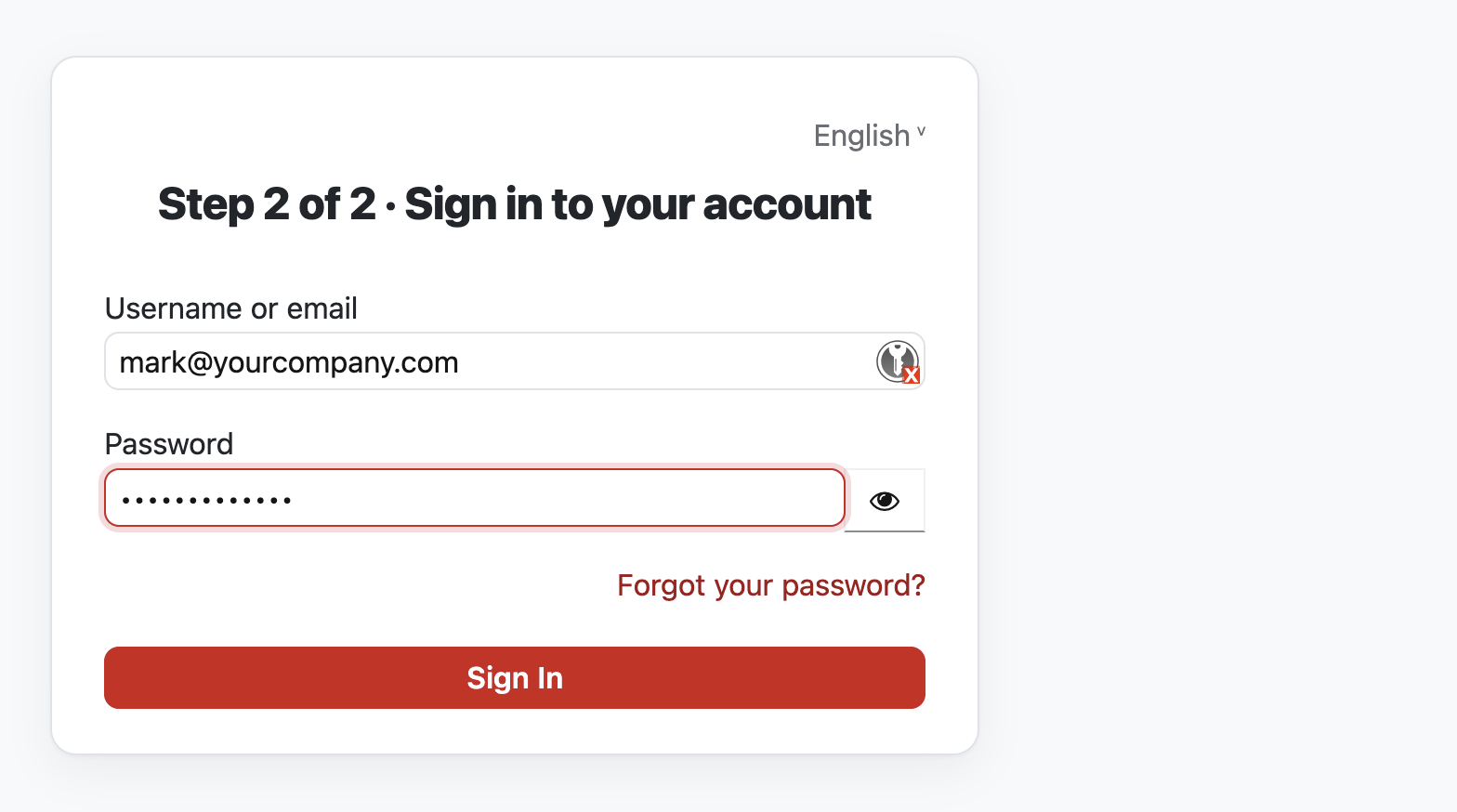
Sign in to your account
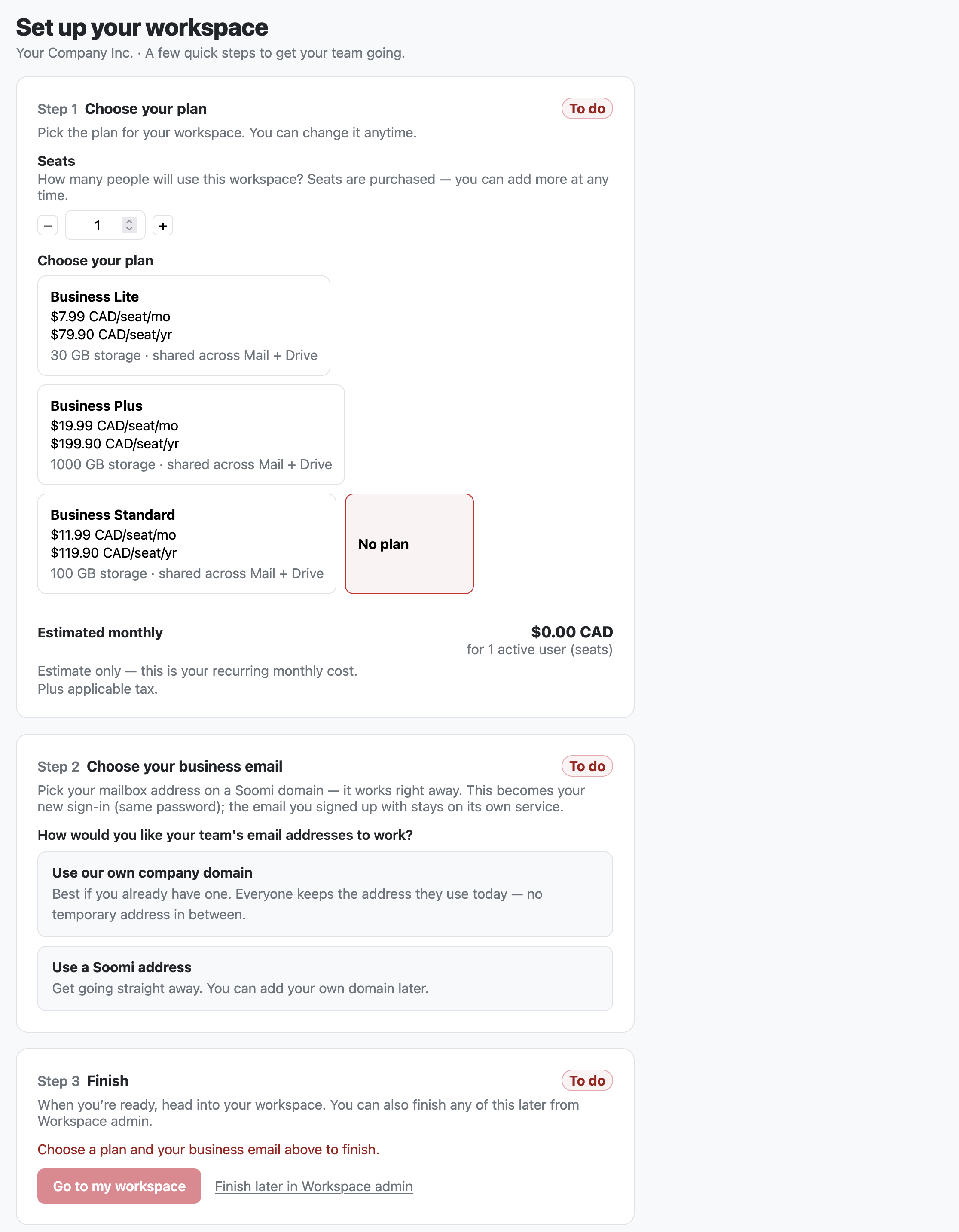
You land on Set up your workspace, a three-step checklist. You can leave it at any time and finish later in Workspace admin. Nothing is lost.
2. Choose your plan and pay
Under Seats, choose how many people will use the workspace. You can add more at any time.
Choose your plan, then choose Monthly or Annually. Annual billing gives you two months free.
Add any add-ons you want, then select Review & checkout.
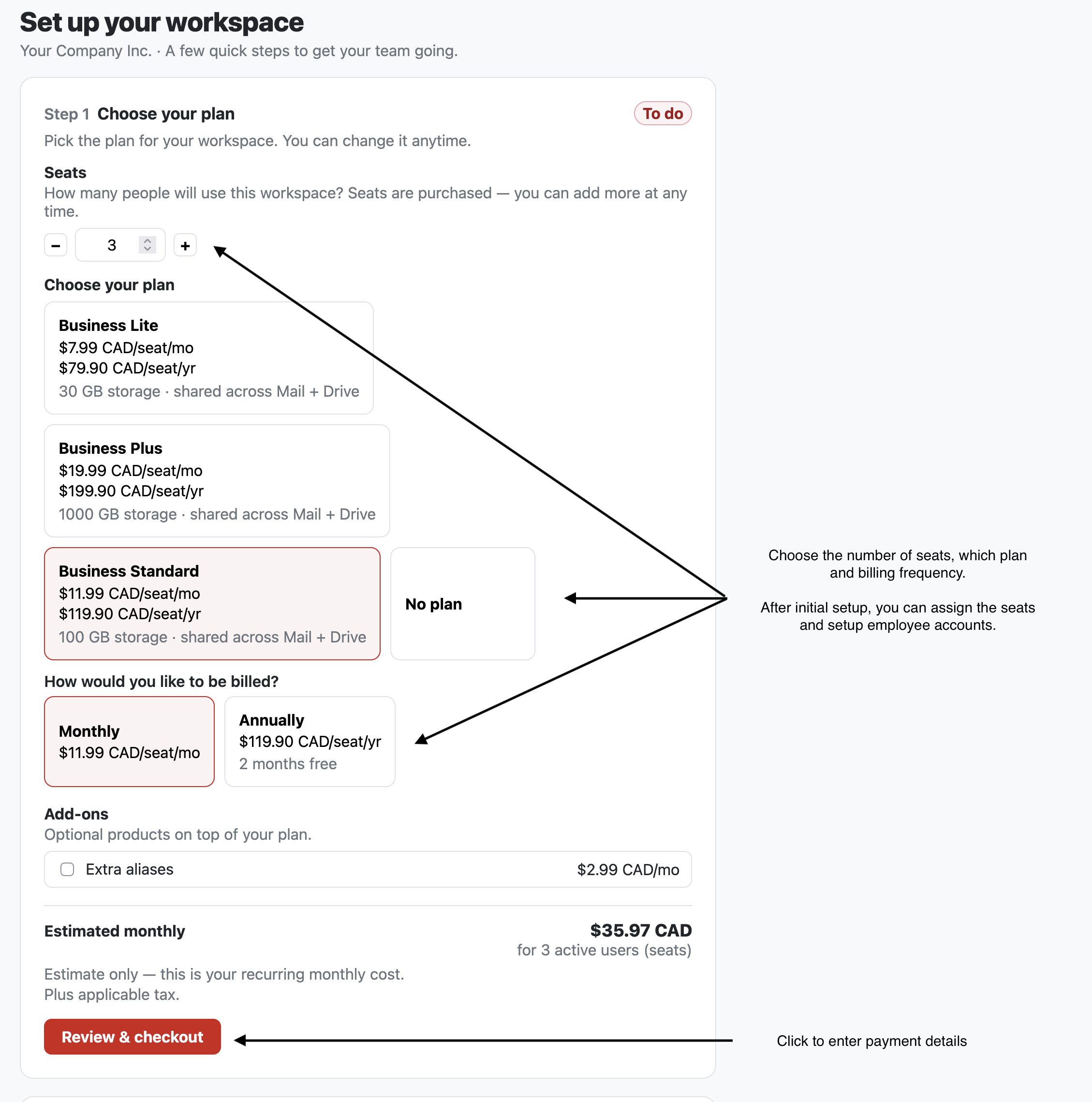
Choose seats, a plan and how you're billed Enter your business address and select Save address. Tax is worked out from your business's location, not from the card's billing address, so the tax and the exact total appear once the address is saved.
Enter the card details. Card's postal code is the one on the card's statement. It can differ from your business address, for example when someone else's card pays.
Tick the box allowing Soomi to keep the card on file for renewals, then select Purchase.
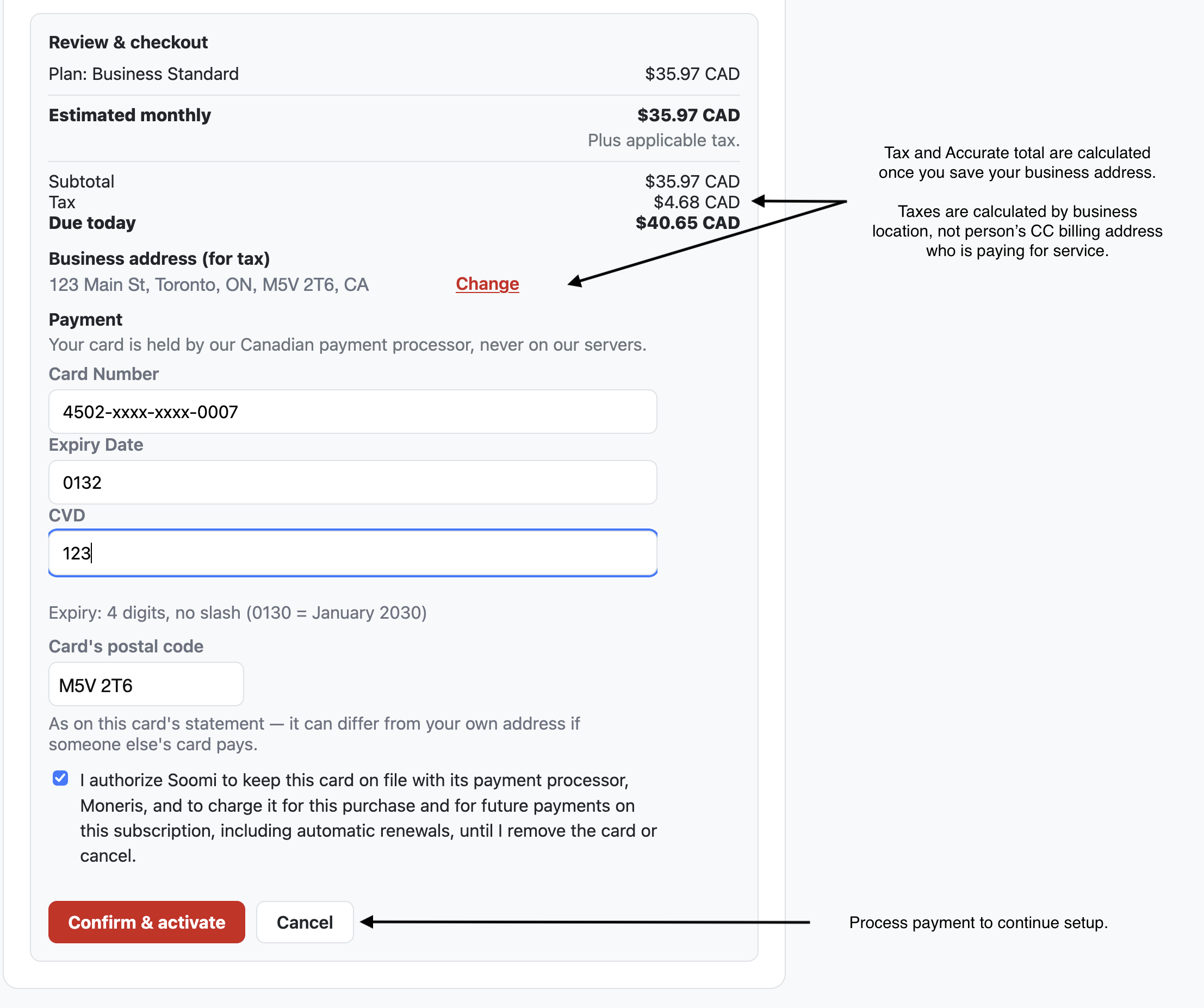
Review and checkout, with tax calculated from the business address
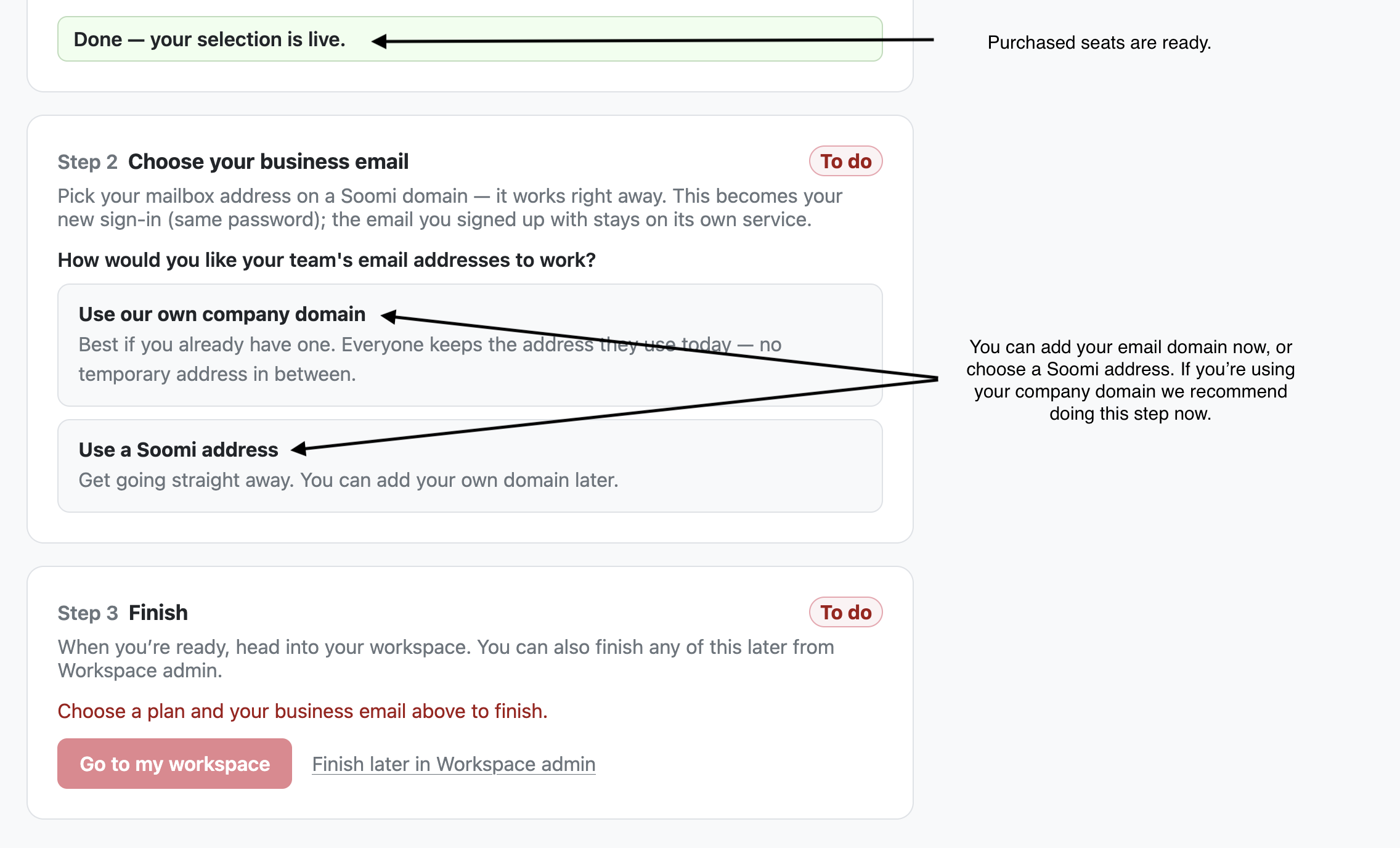
When it shows Done — your selection is live, your seats are ready.
Your card is held by our Canadian payment processor, never on our servers.
3. Choose your business email
Choose how your team's email addresses work:
Use our own company domain: recommended if you already have one, for example
yourcompany.com. Everyone keeps the address they use today.Use a Soomi address: get going straight away. You can add your own domain later.
If you use your own domain: prove you own it
Enter your domain name.
Soomi shows one TXT record. Add it at your DNS provider, which is usually where you bought the domain.
This record only proves you own the domain. It does not affect your existing email.
Select Verify ownership.
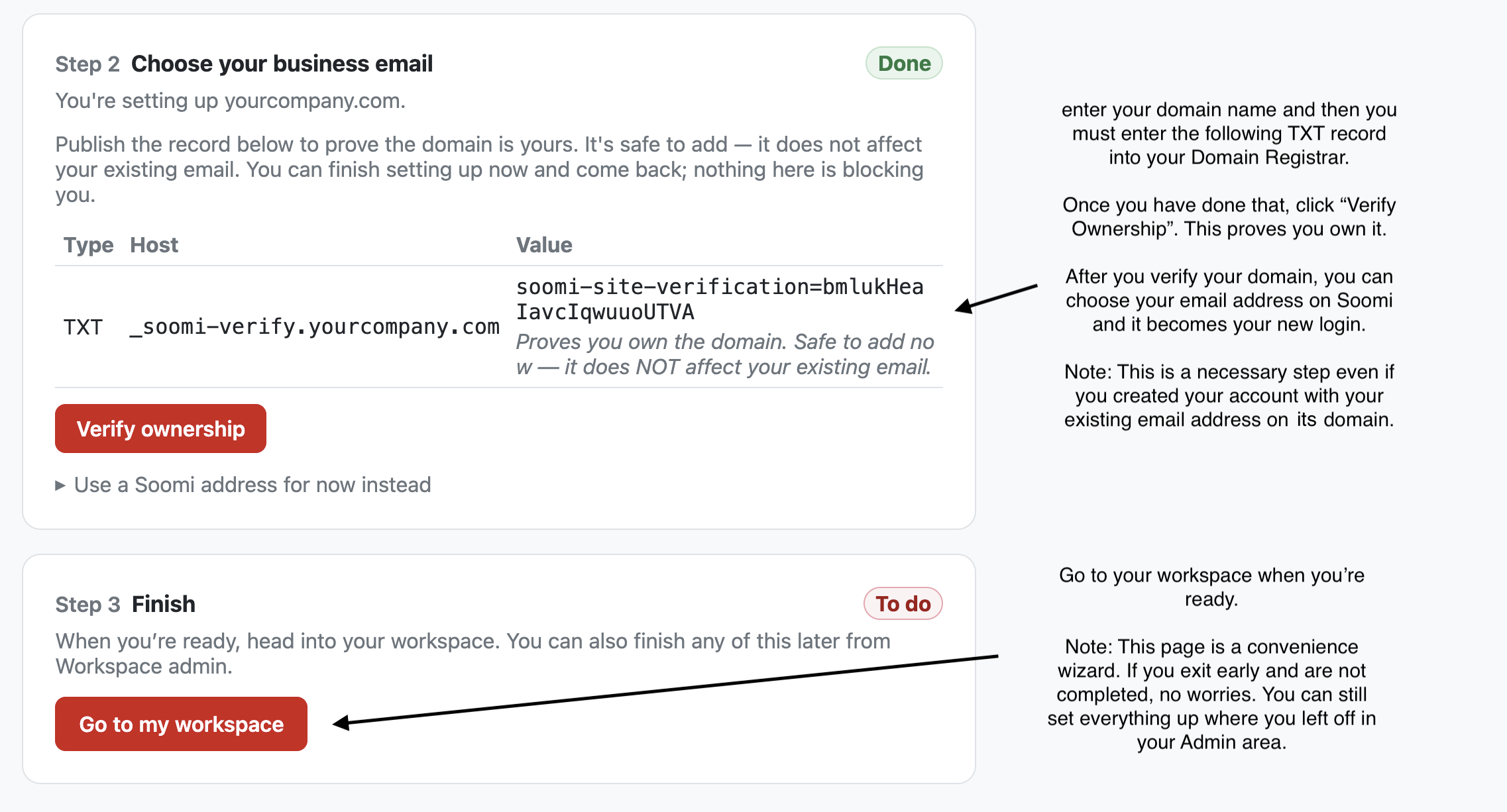
Do this step even if your work email is already on this domain. Soomi still needs proof that the domain is yours.
Once it is verified, your address on the domain becomes your Soomi sign-in, with the same password. Then select Go to my workspace.
4. Add your team
Open the menu (☰), then Admin → People.
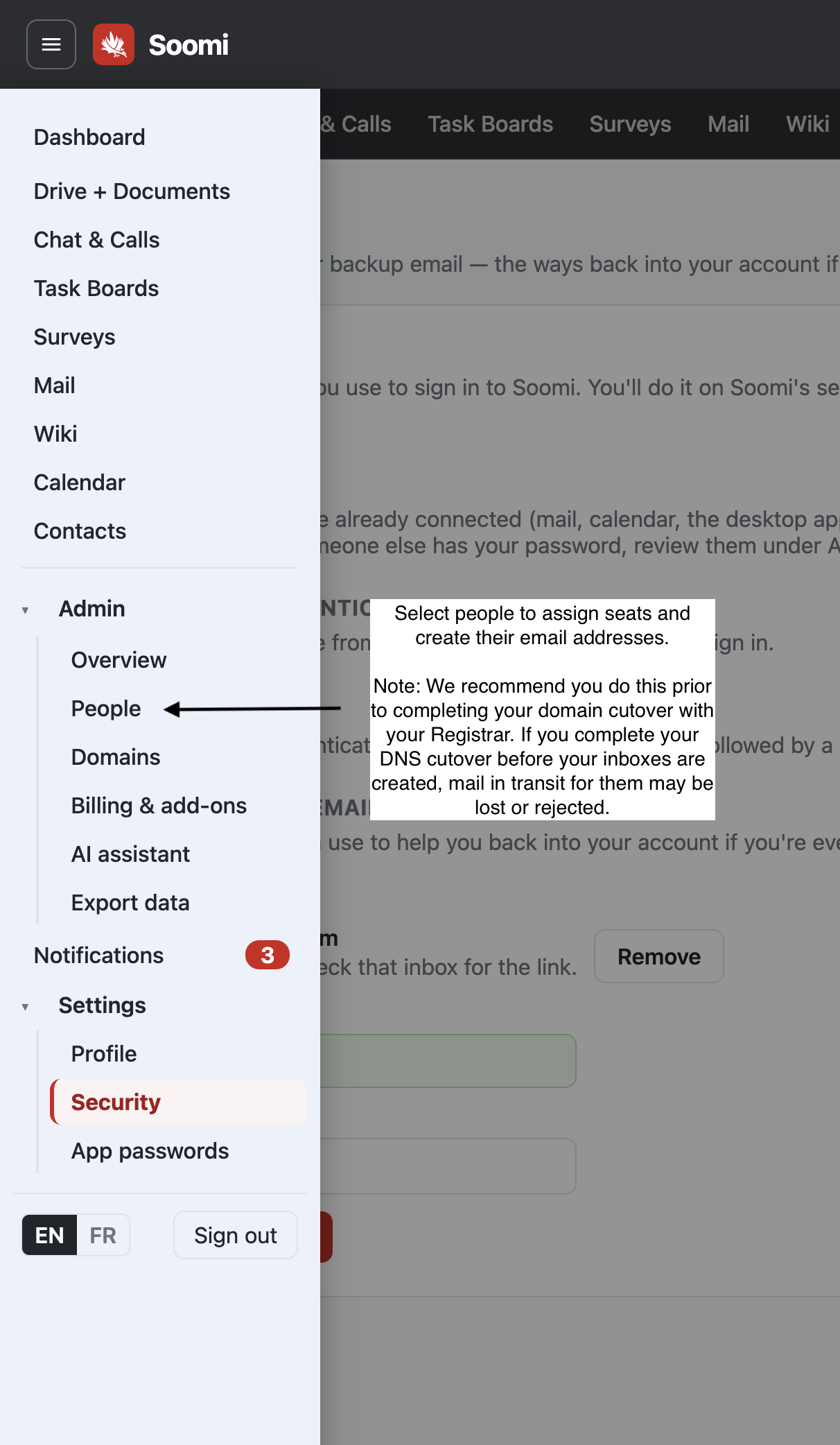
Team shows everyone in the workspace and how many seats you have left: Seats: 3 purchased · 1 in use · 2 available to set up. If you haven't chosen your business email yet, you can do it here under Your business email.
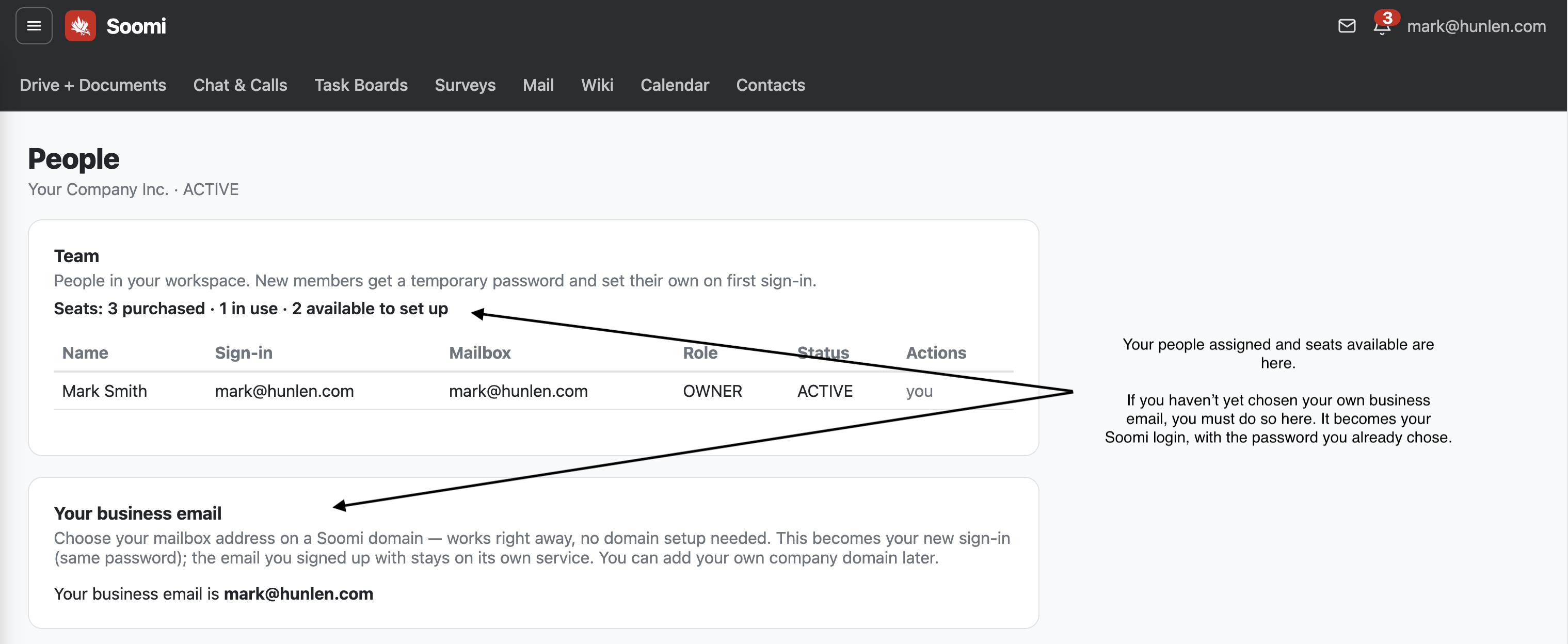
Under Add people to your team, answer two questions:
How many people? Add One person, or paste A list of people to add everyone at once.
Who sets their password?
I'll give them one: Soomi shows a temporary password once, for you to pass on. They change it the first time they sign in.
They set their own: Soomi emails a one-time link to an address you give, such as their current email. You never see their password.
Their work address is suggested from their name. Edit it if you'd rather, then select Add team member.
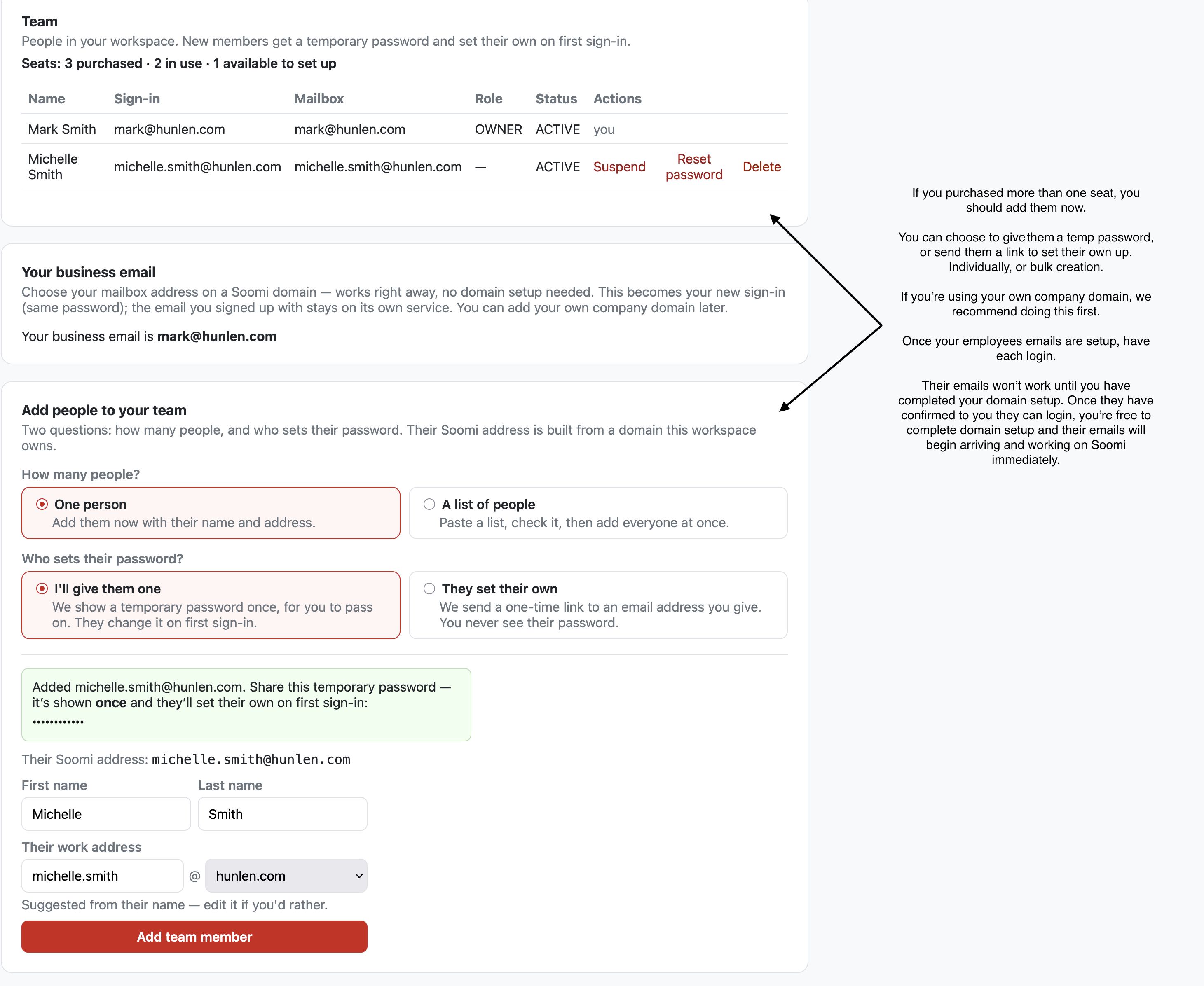
If you're using your own domain, add everyone now, before you move your email in step 6. Each person can sign in and use Soomi right away. Mail to their address on your domain keeps arriving at your current provider until you move it.
Ask everyone to sign in once and confirm it works. If someone doesn't have a Soomi mailbox when you move your email, mail sent to them is rejected.
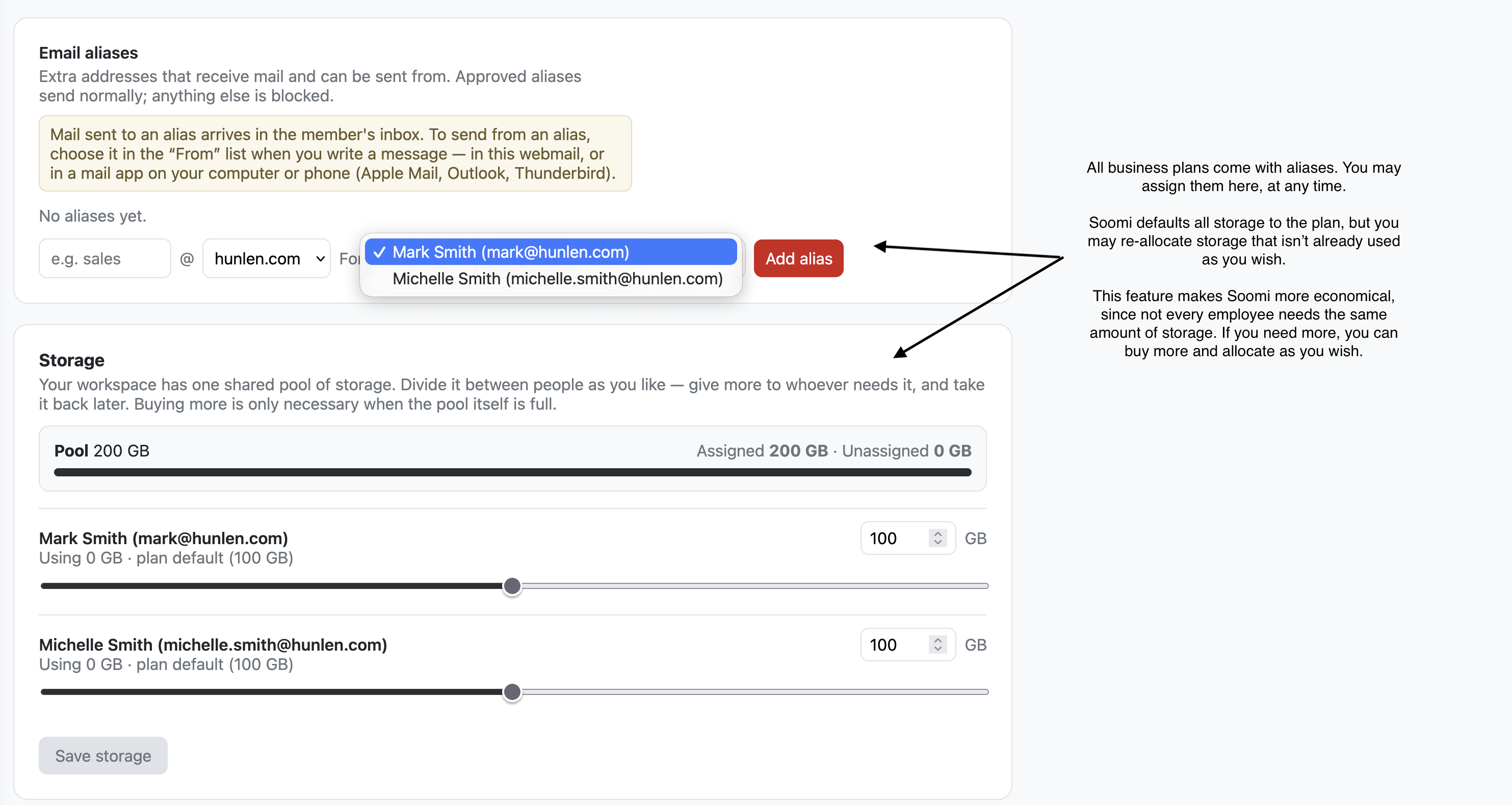
5. Aliases and storage (optional)
Both are on the People page, and you can change them at any time.
Email aliases are extra addresses, such as
sales@, that deliver to a person's inbox. To send from an alias, pick it in the From list when writing a message.Storage is one shared pool for the whole workspace. Each person starts at the plan's default, and you can move unused space to whoever needs it. Buy more only when the pool itself is full.
6. Move your email to Soomi
Skip this step if you chose a Soomi address.
Open Admin → Domains.
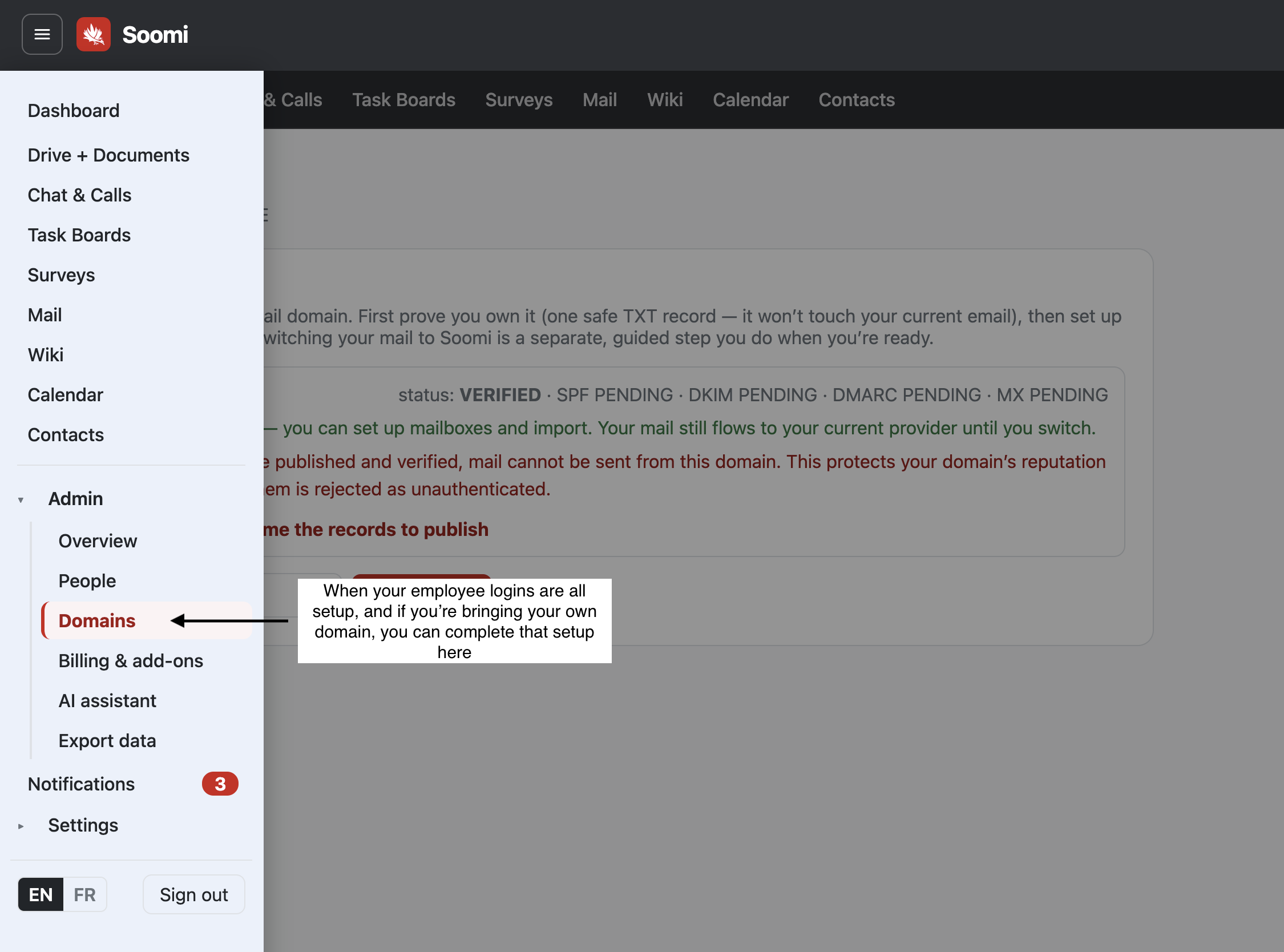
Your domain is listed with its status. Select I'm set up — show me the records to publish.
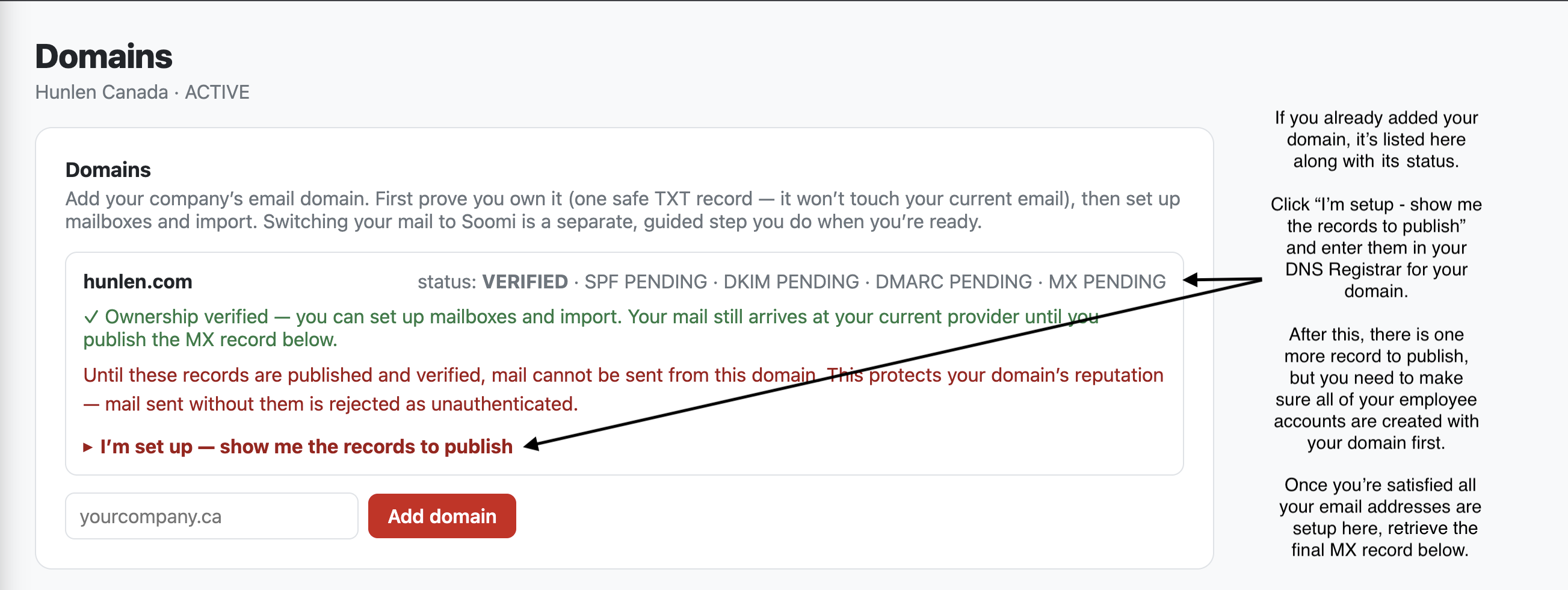
Step A: the sending records (SPF, DKIM, DMARC)
Add the three records shown at your DNS provider. They let Soomi send mail as your domain. They don't change where your mail arrives, so it's safe to add them now. Until they're added and verified, mail can't be sent from your domain through Soomi.
SPF: a domain may have only one SPF record. Replace any existing one rather than adding a second. If other services send email as your domain (invoicing, a CRM, newsletters, your website's contact form), add them to the SPF record too.
DMARC: starts at
p=none, which only monitors and blocks nothing. The page explains when it's safe to tighten it.
Step B: the MX record (moves your incoming mail)
The MX record decides where new mail for your domain arrives. As soon as you publish it, all new mail for the domain comes to Soomi and stops arriving at your current provider.
Check that everyone who needs an address on this domain has been added (step 4). Soomi won't show the MX record while anyone on the domain is still missing a mailbox.
Tick the box confirming you understand what the MX record does, then select Show the MX record.
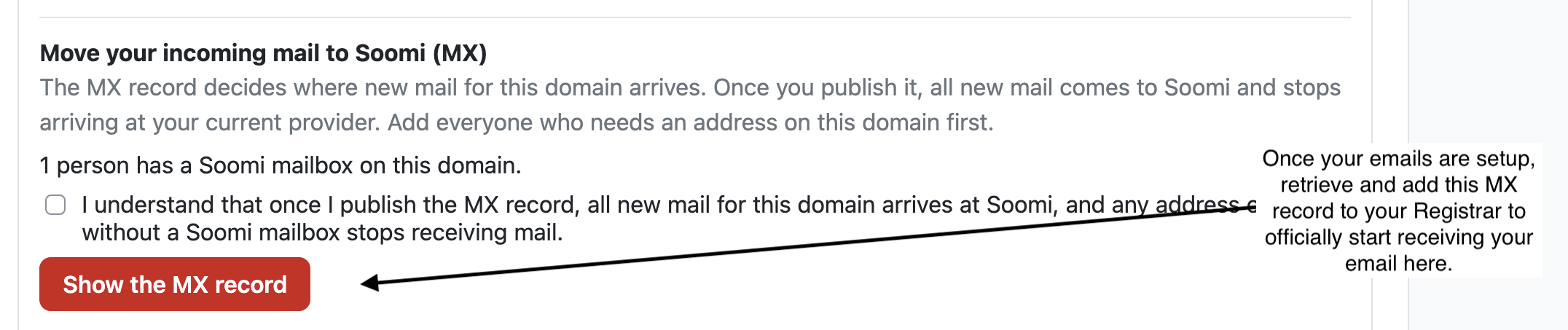
Confirm, then show the MX record At your DNS provider, delete every MX record from your old provider, then add the Soomi one.
Important: Soomi checks only that its own MX record is there. It does not warn you about old ones. If any old MX record stays, some or all of your mail keeps going to your old provider, even though Soomi shows the domain as verified.
Select Verify mail DNS. When all four records check out, the domain shows ✓ Your mail is live on Soomi.
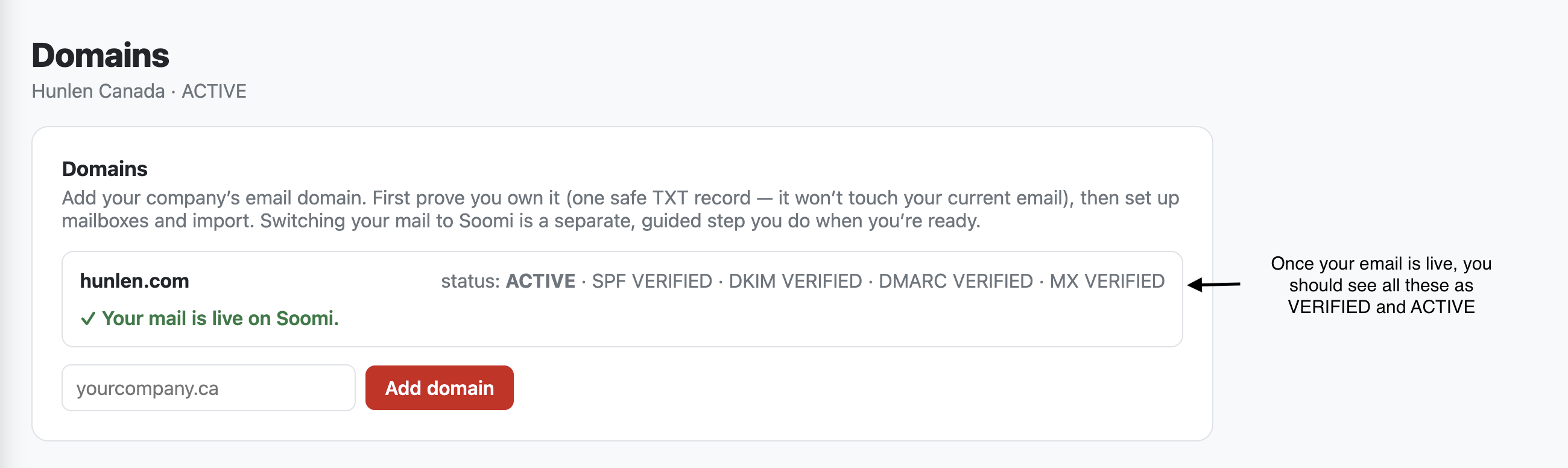
Your mail is live on Soomi
Then: everyone copies their old mail across
New mail now arrives in Soomi, so nothing new lands in the old inbox. Each person can copy their old mail across at their own pace, and nobody needs to keep checking the old account. The guide Move your old email to Soomi, under Support in the menu, shows each person how.
Troubleshooting
| What you see | What to do |
|---|---|
| Verify ownership says the record isn't there | DNS changes can take a few minutes to appear. Wait, then try again. Check the record was saved exactly as shown. Some DNS providers add your domain to the host name automatically. If yours does, enter only the part before your domain (_soomi-verify). |
| SPF fails | Make sure there is only one SPF record on the domain. Two SPF records fail worse than none. |
| DKIM fails | Copy the DKIM value again exactly. A shortened or old value is the usual cause. |
| The MX record isn't shown | Someone on the domain doesn't have a mailbox yet. The page says how many. Ask them to finish signing up, or Delete them under People if they've left. |
| Mail still arrives at the old provider | Delete the old provider's MX records. Only the Soomi MX record should remain. |
| A team member can't sign in | Under People, select Reset password, or add them again with They set their own. |
Next
Once you're signed in, open Support from the menu (☰) for guides your whole team can use:
Move your files to Soomi Drive
Bring your calendars and contacts to Soomi